How to Install Python SDK for RealtyAPI in 2026
You've run pip install, it finished without an error, and your script still can't find the module. Or it imports, then dies on the first request with a 401 you can't separate from a broken setup. That's the standard way developers lose an afternoon trying to install Python SDK packages, because a successful download proves almost nothing on its own.
Treat the install as finished only when three checks pass in order: the interpreter matches, the import runs, and one authenticated request returns listings. The bar exists because a completed pip run confirms the package exists and nothing more. It tells you nothing about whether that package loads under your Python version or authenticates with your key. The workflow is universal, the failure modes are local, and each step below gives you a pass or fail check so you know exactly which layer broke.
Get Your RealtyAPI Key and Store It Safely
A developer pastes the key straight into a notebook to get a search working, shares the notebook with a teammate, and the key lands in the repository history. Deleting the cell doesn't undo that. Get the key properly first: create an account, confirm your email, open the dashboard, and check the current plan details and test allowance there, since those terms can change. The RealtyAPI introduction docs cover the account side.
- Store it as an environment variable: Use the variable name the SDK documentation specifies, set with
exporton macOS or Linux and$env:syntax in PowerShell on Windows. - Ignore local secret files: Add any .env file to .gitignore before your first commit, not after it.
- Rotate on exposure: Replace the key immediately if it appears in a screenshot, a support ticket, or a public repository.
Your check is simple and doesn't leak anything. Confirm the variable is set and non-empty with a one-liner that prints only the length of the value, never the key itself. If the length prints as zero, stop here.
How to Install the SDK Inside a Virtual Environment
A package installed into the system interpreter can land in a different Python than the one your application runs. It is one of the most common causes behind a clean install followed by a ModuleNotFoundError ten seconds later. A project-local virtual environment keeps the SDK, your code, and your dependencies on the same interpreter, and it gives you a plain pass/fail check: the package location has to sit inside .venv.
The Six Step Install Sequence
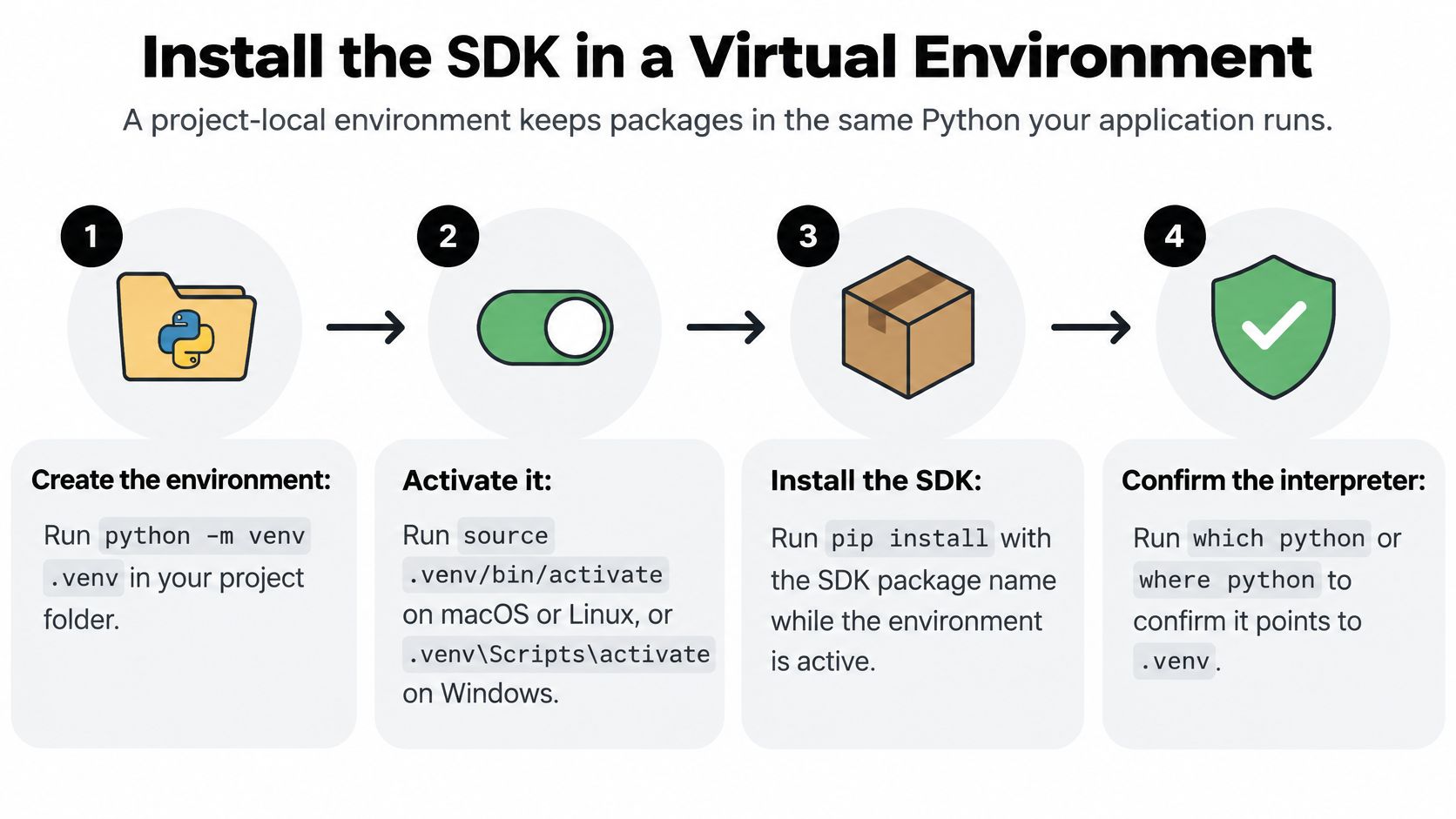
- Check the interpreter: Run
python --version, orpython3 --versionon macOS and Linux, orpy --versionwith the Windows launcher, and confirm it falls inside the supported Python range the SDK package page lists. Outside that range is a fail, even if pip later reports success. - Create the environment: Move into your project folder and run
python -m venv .venv. The Python Packaging Authority guide to pip and virtual environments identifiesvenvas the standard-library mechanism for this. Pass sign: a .venv directory exists in the project. - Activate it: Run
.venv\Scripts\activateon Windows orsource .venv/bin/activateon macOS and Linux, then confirm the (.venv) prompt prefix appears before you type anything else. For a stronger check,where pythonon Windows orwhich pythonon Unix-like shells should point inside .venv. - Upgrade the installer: Run
python -m pip install --upgrade pipso an outdated pip isn't the reason a dependency resolves badly. - Install the SDK: Run
python -m pip install <sdk-package>using the exact package name from the RealtyAPI Python documentation. A successful pip line is progress, not proof. - Confirm placement: Run
python -m pip show <sdk-package>and check that the reported location sits inside .venv. If it points anywhere else, the install went to the wrong interpreter.
Why Two of These Commands Get People Stuck
The first is python -m pip versus bare pip. When you run pip on its own, you're trusting your PATH to find the pip that belongs to the Python you think you're using. On machines with several Python installs, that trust is often misplaced. python -m pip removes the guesswork because it invokes pip through the selected interpreter, so the package lands in the environment that interpreter uses.
Practical rule: If an install "succeeded" but the import fails, don't reinstall anything. Run
python -m pip show <sdk-package>first and read the location line. It usually tells you the whole story.
The second trap is activation scope. Activating an environment lasts only for the current terminal session. Open a new terminal tomorrow and you're back on the system Python, with no warning beyond the missing (.venv) prefix. People routinely install into the wrong interpreter this way, then debug a perfectly good SDK. For scripts and CI jobs, you can skip activation entirely and call the environment's interpreter directly, for example .venv/bin/python -m pip install ... on Unix-like systems, which is harder to get wrong. Either way, treat the pip show location check as your pass or fail gate for this whole step.
Initialize the Client and Run Your First Request
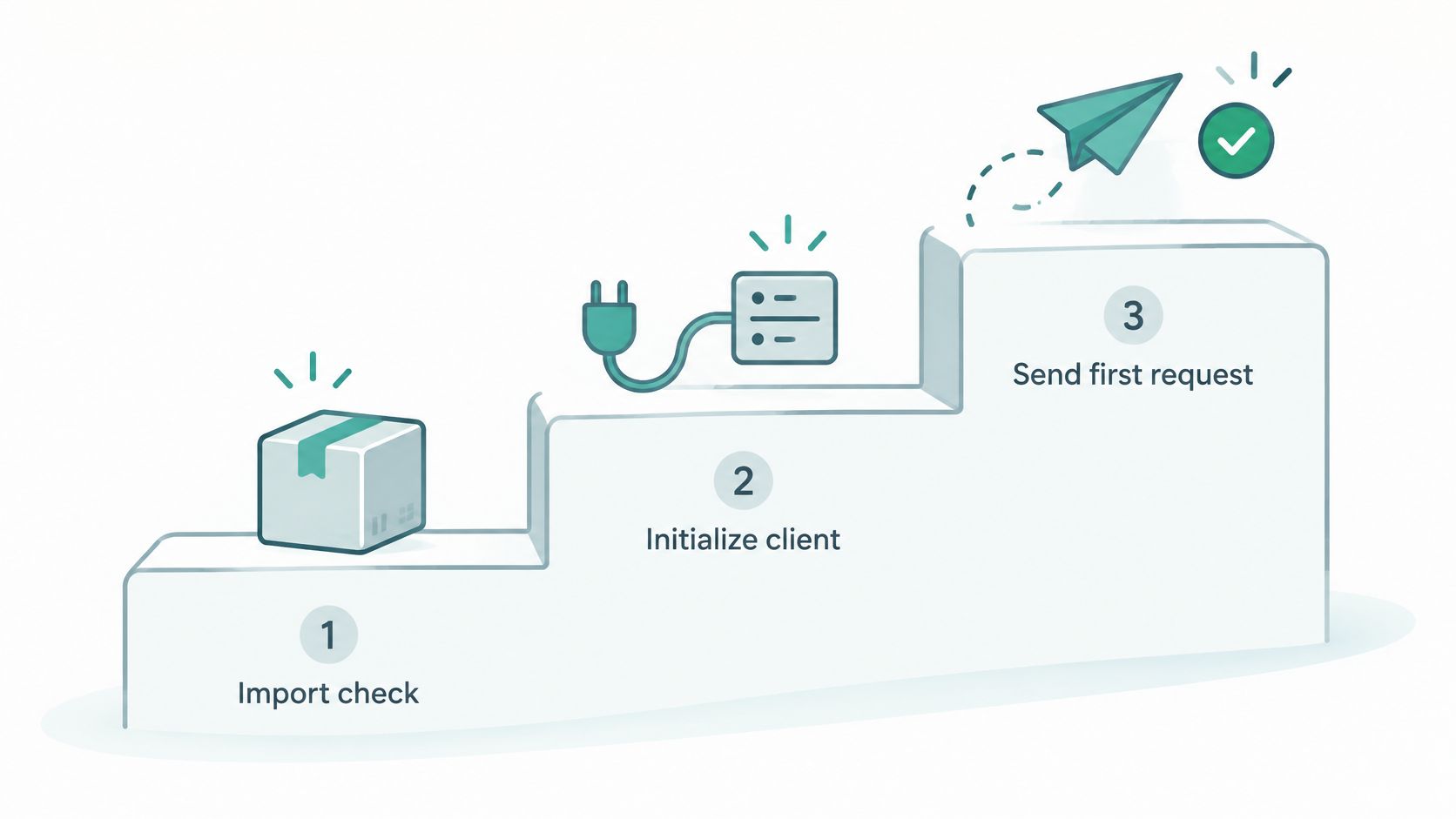
Three checks, in order, each stronger than the last. Run them in this sequence and a failure points at exactly one layer instead of making you guess.
Check One and Check Two
First, the import test. Run python -c "import <sdk_module>; print('SDK import successful')" in your activated environment. If this fails, your problem is the environment or the interpreter, not your key, not the network. Go back to the pip show location check before touching anything else.
Second, the constructor test. Create the client, reading the key from the environment variable you set earlier, and make no network call at all. If construction fails, check the variable name against the SDK documentation character by character. A typo here often surfaces as a vague configuration error that looks like an SDK bug but isn't.
Check Three Against a Real Search
Third, the smoke test. Run one low-cost property search by coordinates over central Austin, Texas (30.2672, -97.7431), with an explicit timeout of about 10 seconds so a stalled connection can't hang your script indefinitely. You can preview the same request shape in the RealtyAPI API playground before wiring it into code. A passing response is a non-empty list of listings. Print the count and the first listing's title. That output is your real finish line, because now the interpreter, the import, the key, and the network have all been exercised together.
If you get an HTTP 401 or 403 at this step, don't reinstall anything. That response means the request reached the API and the key is missing, mistyped, or lacks permission. The install is fine. Re-run the variable length check in the same terminal session you're running the script from, since a variable set in one terminal doesn't exist in another. Once the smoke test passes, you can broaden your searches, since the platform supports lookups by destination, coordinates, place ID, or URL.
Fix Install Errors by Symptom
A pip install that exits cleanly proves almost nothing. The install only counts when the interpreter matches, the import runs, and an authenticated request returns listings, so treat every error message as a pass or fail check on one of those steps. Failures cluster into a few predictable causes: the wrong interpreter, an unsupported Python version, a missing wheel or build tool, a network or permission limit. Match the message to a cause before you change anything, because a command that was exactly right still fails when the environment underneath it is wrong. The official Python installing documentation recommends running pip as python -m pip for precisely this reason, since it ties the install to the interpreter you invoke.
| Symptom | Likely cause | First fix |
|---|---|---|
| ModuleNotFoundError after installing | Package went into a different interpreter | Activate .venv, then reinstall with python -m pip install <sdk-package> |
| error: externally-managed-environment | System Python on Debian, Ubuntu, Raspberry Pi OS, or Homebrew blocks global installs | Create a project venv; don't force installs with --break-system-packages |
| No matching distribution found | Python version outside the SDK's supported range, or unsupported platform | Check the supported Python range on the package page and install a matching interpreter |
| Failed building wheel for a dependency | No prebuilt wheel for your CPU architecture, or missing build tools | Upgrade pip, then retry on a Python version with prebuilt wheels for your platform |
| SSL: CERTIFICATE_VERIFY_FAILED or connection timeout | Corporate proxy or TLS inspection on the network | Set pip's proxy or certificate options as your IT policy allows, then retry |
| HTTP 401 or 403 on the first request | Key missing, mistyped, or lacking permission | Confirm the variable is set in the same terminal session, then check the key in the dashboard |
| Permission denied writing to site-packages | Installing into the system Python without rights | Delete the broken .venv and recreate it inside the project |
The first three rows are environment and version problems, and reinstalling into a clean .venv with a matching interpreter clears most of them. Wheel and TLS failures are platform and network problems, where changing the SDK version won't help. The 401 and 403 row sits outside the install entirely, and the RealtyAPI status codes documentation explains what each response is telling you.
When you ask for help, include the full resolver or build error, your Python version, your operating system, and your CPU architecture. "It doesn't install" gives nobody anything to work with.
Match Your Setup to Your Working Environment
The shortest install command is often the least portable one. A bare pip install that worked last year now fails on many machines because, as the externally managed environments specification describes, modern Linux distributions and Homebrew can mark the system interpreter as externally managed, and pip refuses global installs. Environment isolation isn't a best practice anymore. It's the default requirement.
| Context | Recommended setup | Install command | Watch for |
|---|---|---|---|
| Application library in a project | Project .venv | python -m pip install <sdk-package> |
Activate the venv before running the app |
| Standalone command-line script | pipx | pipx install <sdk-package> |
Keeps the tool isolated from other projects |
| Jupyter notebook | Kernel bound to the same .venv | %pip install <sdk-package> in a cell, then restart the kernel |
Notebook kernel can point at a different Python |
| VS Code or PyCharm | .venv selected as project interpreter | Run the install in the integrated terminal inside .venv | Editor may default to a global interpreter |
| Docker image | Python base image with an in-container venv | RUN python -m pip install <sdk-package> |
Base image tag can drift; pin the version |
The pattern behind every row is the same. The SDK and the application must run on the same interpreter and the same dependency set, or the install looks fine while the app fails. Notebooks and editors cause the most confusion here because each keeps its own interpreter setting that can quietly diverge from your terminal. Your quick check in every context: confirm the interpreter path your editor, kernel, or container reports lines up with the .venv path you installed into. If those two paths differ, you've found your bug.
Pin the SDK Version Before You Deploy
An install that worked once isn't the same as an install you can repeat. Production needs the second kind, and the Packaging User Guide requirements file workflow is the mechanism that gets you there.
- Capture the validated environment: After your checks pass, run
python -m pip freeze > requirements.txt. - Commit the file: Keep the SDK line and its transitive dependencies in source control with your code.
- Rebuild from scratch: In a fresh venv, run
python -m pip install -r requirements.txt, which installs every declared dependency. - Re-run the checks in CI: Repeat the import and constructor tests so an undeclared dependency fails the build, not the first production request.
- Choose your pinning style: Use an exact version for a deployed service and a minimum version for a library others depend on.
Test upgrades in a separate environment, never in place. Compare smoke-test latency and error behavior against the pinned version, and review the RealtyAPI rate limits documentation before load-shaped testing so your checks don't trip account limits. Promote only when the regression checks pass. At startup, log the SDK version and Python version so production errors carry context. Never log the API key.
Your interpreter matches, your import runs, and your smoke test returns listings, so you're ready to build real property search, pricing, and market monitoring features on that foundation. RealtyAPI gives you unified access to listings and market signals across major platforms through one developer-first API, with searches by destination, coordinates, place ID, or URL. Grab your key and start building at RealtyAPI.io.